Organic Instagram growth
Save Instagram Reels Without a Watermark on iPhone, Android, Desktop
How to save Instagram Reels without a watermark on iPhone, Android and desktop, keep the original quality and sound, and when to ask the creator first.
By Flock Social TeamPublished August 19, 20264 min read
Saving an Instagram Reel sounds simple until you try it. The built-in options either keep the video inside the app, or export a copy with an Instagram logo and the creator's username stamped across it. If you want a clean file for a mood board, a client presentation or a backup of your own work, you need a slightly different approach.
This guide covers every reliable method on iPhone, Android and desktop, explains where the watermark comes from, and shows how to keep the original quality and sound.
First, a quick word on permission
Downloading a Reel gives you a copy, not the rights to it. Saving your own content, or a public Reel for personal reference, is fine. If you plan to repost someone else's video, ask the creator first and credit them clearly. Many creators are happy to say yes when asked, and a polite message avoids takedowns and damaged relationships.
Method 1: Save it inside Instagram
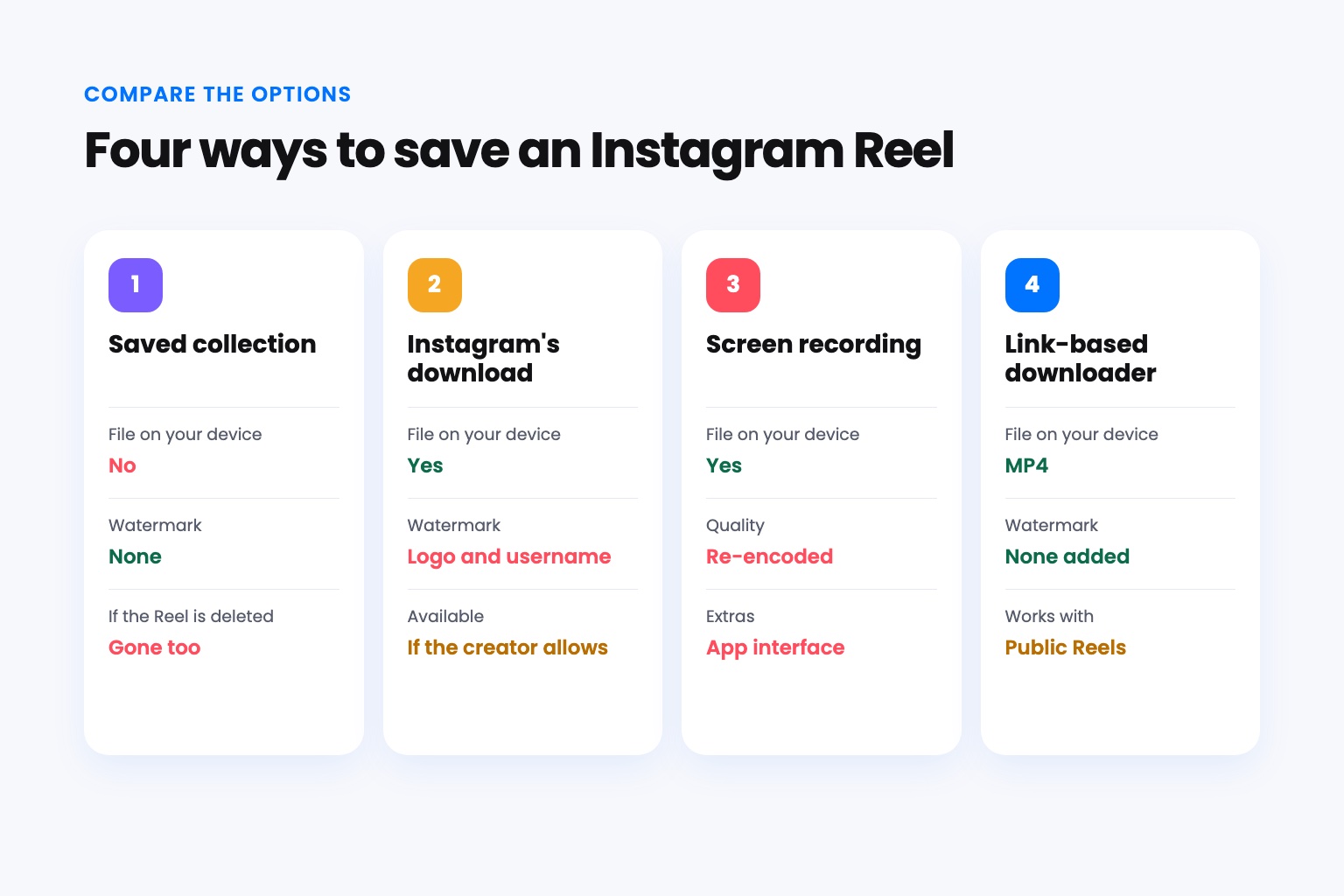
Tap the bookmark icon under any Reel and it goes to your Saved collection. This is the quickest option, but nothing is actually downloaded. If the creator deletes the Reel or makes their account private, it disappears from your collection too. Use this for casual browsing, not for anything you need to keep.
Method 2: Instagram's own download button
For some public Reels, Instagram shows a "Download" option in the share menu. The file it creates includes an Instagram watermark and the creator's username, and the option only appears when the creator allows it. That watermark is the main reason people look for an alternative: it looks out of place in a presentation and many other platforms push watermarked videos down in their feeds.
For your own Reels, you can also open the Reel, tap the three dots and choose to save it to your device. That copy is the version you uploaded, which is usually the cleanest option for your own content.
Method 3: Screen recording
Every modern phone can record its screen. It works for anything you can play, but the result is rarely good: you capture the app interface, notifications can slip in, and the video is re-encoded at screen resolution. It is a last resort rather than a real solution.
Method 4: Use a web downloader with the Reel's link
The cleanest way to save a public Reel without a watermark is a browser-based downloader that works from the Reel's link. GramSave is a free example: you paste the link and it saves the Reel as an MP4. Because it fetches the file Instagram itself serves for that Reel, there is no extra watermark layer, the video is not re-compressed or downscaled, and the original audio stays in the file. There is nothing to install, no sign-up and no Instagram login. Like any legitimate tool, it only works with public accounts; videos from private accounts cannot be downloaded this way.
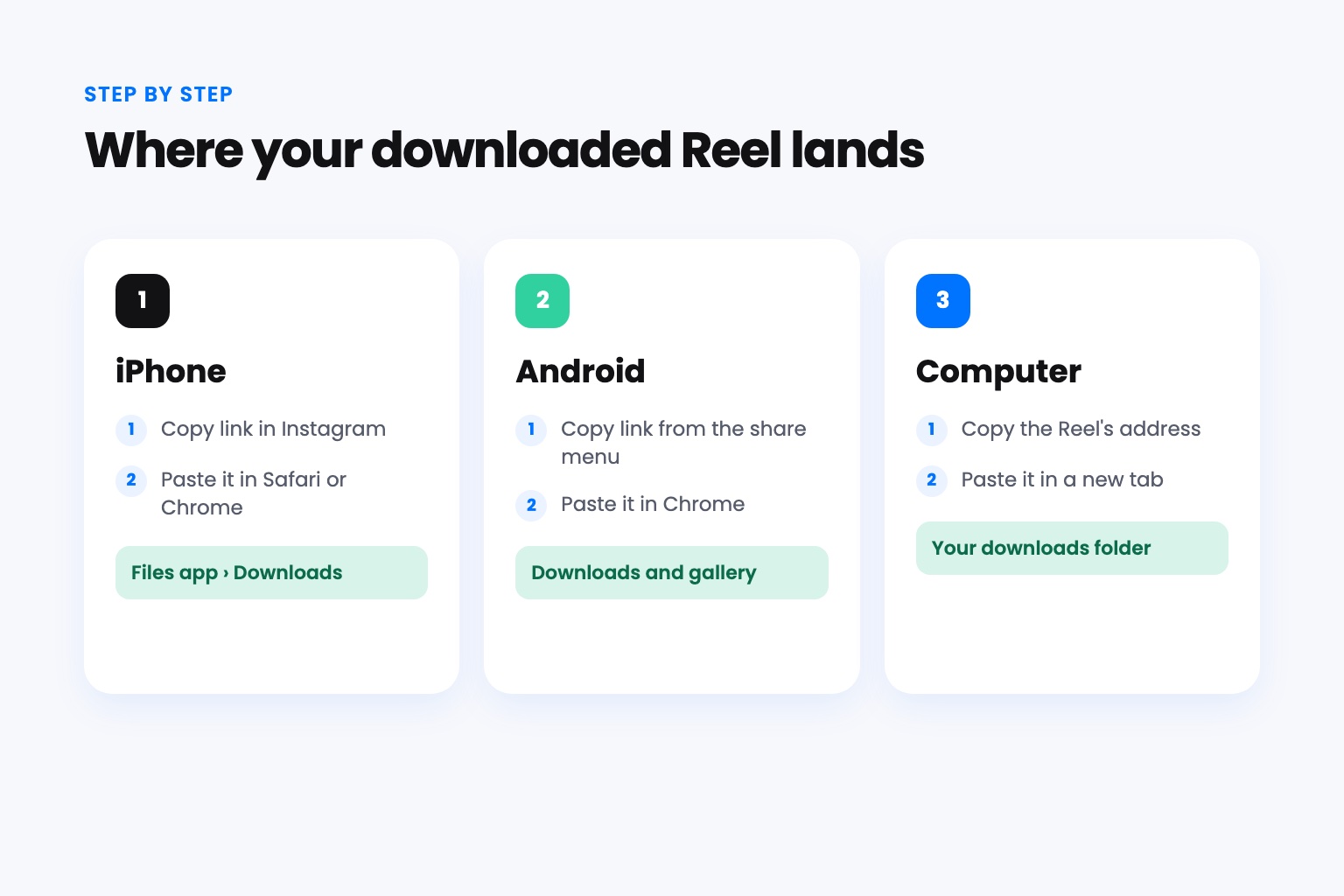
On iPhone
- Open the Reel in Instagram, tap the share icon and choose "Copy link".
- Open Safari or Chrome and go to the downloader.
- Paste the link and tap download.
- The MP4 lands in the Files app under Downloads. From there you can share it or save it to Photos.
On Android
- Copy the Reel's link from the share menu in Instagram.
- Open Chrome, paste the link into the downloader and start the download.
- The video is saved to your Downloads folder and appears in your gallery app.
On a computer
- Open the Reel on instagram.com and copy the address from the browser bar.
- Paste it into the downloader in another tab.
- The MP4 saves to your usual downloads folder, ready for editing software.
Keeping quality and sound intact
A few small habits make a big difference:
- Avoid re-recording. Screen recordings and "export" features in other apps often re-encode the video, which softens detail and can shift audio out of sync.
- Check the music. Reels that use licensed tracks may have restrictions in some regions. The downloaded file keeps the audio the Reel was published with.
- Rename files right away. Instagram links are not descriptive. Adding the creator's handle and a short note to the file name makes your library easier to search later.
Which method should you use?
For quick inspiration, the Saved collection is enough. For your own Reels, the in-app save gives you your original upload. For a clean, watermark-free copy of a public Reel that you have permission to use, a link-based web downloader is the fastest option on any device. Whatever you choose, keep a habit of crediting creators. It costs nothing and it is the reason Reels are worth saving in the first place.