



Keeping your Instagram app up to date is one of the simplest things you can do to improve your experience on the platform. Whether you want access to the latest features, better security, or smoother performance, knowing how to update Instagram is essential for every user.
Many people skip app updates without realizing what they’re missing. New creative tools, improved privacy settings, and important bug fixes all come through regular updates. If you’ve ever wondered why a friend has a feature you don’t, an outdated app is often the reason.
This guide walks you through everything you need to know about updating Instagram on any device. From iPhones and Android phones to desktop computers, you’ll find clear steps to keep your app current. We’ll also cover what to do when updates don’t work and explore the exciting features that come with staying up to date.
Why Keeping Instagram Updated Matters
Running an outdated version of Instagram means missing out on more than just new features. Updates serve several important purposes that directly affect how you use the app every day.
First, updates bring new creative tools that make your content stand out. Instagram regularly introduces fresh ways to express yourself, including augmented reality (AR) filters and other creative options. These tools help you create more engaging Stories and Reels that capture your audience’s attention.
Security is another major reason to stay current. Instagram’s developers constantly work to protect users from potential threats. When they discover vulnerabilities, they release patches through updates. Running an old version leaves your account more exposed to security risks.
Bug fixes come with nearly every update. If you’ve experienced crashes, slow loading times, or features that don’t work properly, an update often solves these problems. Developers identify issues through user reports and fix them in subsequent releases.
Performance improvements make the app run faster and more smoothly. Updates often include optimizations that reduce battery drain, decrease loading times, and make navigation feel more responsive. These changes might seem small individually, but they add up to a noticeably better experience.
Finally, some features simply won’t work without the latest version. Instagram sometimes requires users to update before accessing new tools or participating in certain activities. Staying current ensures you never miss out on what the platform offers.
How To Update Instagram on iPhone

Updating Instagram on your iPhone takes just a few moments. The App Store handles all the heavy lifting, so you don’t need any technical knowledge to keep your apps current.
Start by opening the App Store on your iPhone. You can find it on your home screen with its familiar blue icon featuring a white “A” shape. Once the App Store opens, tap on your profile picture in the top right corner of the screen.
Scroll down to see a list of apps with available updates. If Instagram needs updating, you’ll see it listed here with an “Update” button next to it. Tap that button to begin downloading the latest version.
The download time depends on your internet connection and the size of the update. Most Instagram updates are relatively small and complete within a minute or two on a decent Wi-Fi connection. You’ll see a progress circle that fills as the download and installation proceed.
Once the update finishes, you can open Instagram and start using the new version immediately. After updating, you might want to explore features like how to like a story on Instagram if you haven’t tried that yet.
If you don’t see Instagram in your updates list, you’re already running the latest version. You can also search for Instagram directly in the App Store. If an update is available, you’ll see “Update” instead of “Open” next to the app.
How To Update Instagram on Android
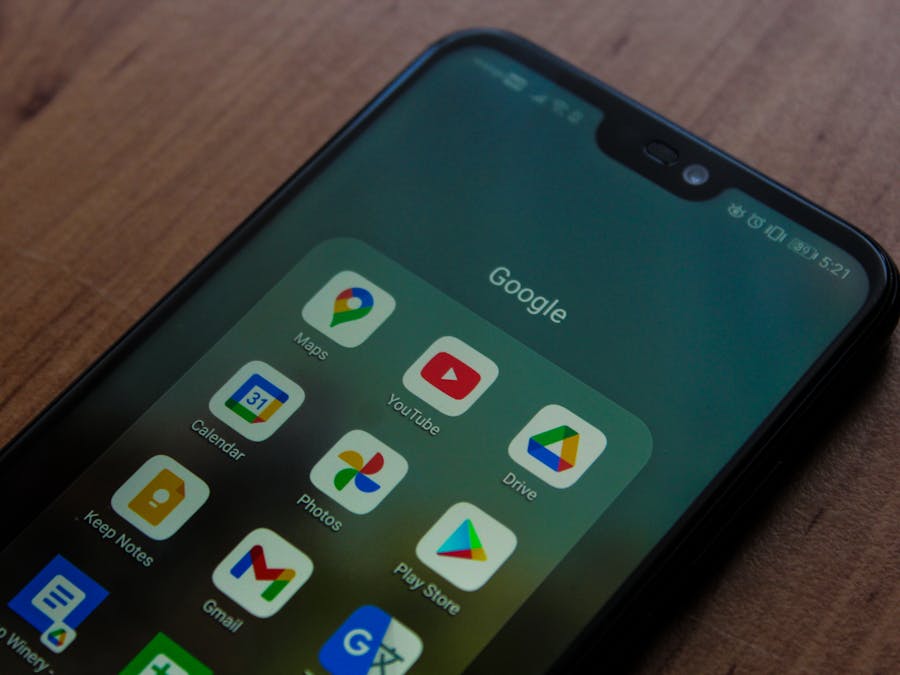
Android users update Instagram through the Google Play Store. The process is straightforward and similar to updating any other app on your device.
Open the Google Play Store app on your Android phone. Look for the colorful triangle icon on your home screen or in your app drawer. Once inside, tap on your profile icon in the top right corner of the screen.
Select “Manage apps and device” from the menu that appears. This takes you to a screen showing your apps’ update status. You’ll see an overview telling you how many apps have updates available.
Tap “Updates available” to see the full list. Find Instagram in this list and tap the “Update” button next to it. If you prefer, you can also tap “Update all” to update every app at once.
The update downloads and installs automatically. You’ll see a progress bar showing how the installation is going. When it finishes, Instagram is ready to use with all the latest features.
Updated apps often work better with various features, including the ability to download Instagram videos and other content you want to save.
You can also search for Instagram directly in the Play Store. Open the app’s page, and if an update exists, you’ll see an “Update” button instead of “Open.” This method works well when you want to check on a specific app rather than reviewing all your updates.
How To Enable Automatic Updates for Instagram
Setting up automatic updates means you’ll always have the latest version without thinking about it. Both iPhone and Android offer this convenient option.
Automatic Updates on iPhone
Open your iPhone’s Settings app and scroll down to find “App Store.” Tap on it to access your App Store preferences. Look for the “Automatic Downloads” section and toggle on “App Updates.”
With this setting enabled, your iPhone downloads and installs app updates automatically when connected to Wi-Fi. You can also enable updates over cellular data if you prefer, though this uses your mobile data allowance.
Some users prefer to update only specific apps automatically. Unfortunately, iOS doesn’t offer per-app automatic update settings. It’s all or nothing, so you’ll need to decide based on your overall preference.
Automatic Updates on Android
Open the Google Play Store and tap your profile icon. Select “Settings” from the menu, then tap “Network preferences.” Find “Auto-update apps” and choose your preferred option.
You can select “Over any network” to update apps using Wi-Fi or mobile data. Alternatively, choose “Over Wi-Fi only” to save your data plan. There’s also an option to disable auto-updates entirely if you prefer manual control.
For more control, you can set auto-update preferences for individual apps. Go to the app’s page in the Play Store, tap the three-dot menu, and enable or disable auto-updates for that specific app.
Updating Instagram on Desktop and Web
Instagram works differently on desktop computers compared to mobile devices. Understanding these differences helps you stay current regardless of how you access the platform.
When you use Instagram through a web browser like Chrome, Firefox, or Safari, you’re always using the latest version automatically. Instagram’s web version updates on their servers, so there’s nothing you need to do. Simply visit instagram.com, and you’ll have access to current features.
The Instagram app for Windows computers works more like the mobile app. You can find it in the Microsoft Store and update it there. Open the Microsoft Store, click on your profile icon, and select “Downloads and updates.” If an Instagram update is available, you’ll see it listed here.
Desktop users can also organize your Instagram saved posts more easily with the larger screen, making it a great option for managing your content collection.
Keep in mind that the desktop and web versions of Instagram have fewer features than the mobile app. Some creative tools and posting options are only available on phones. However, for browsing, messaging, and basic interactions, the desktop experience works well.
What To Do When Instagram Won’t Update

Sometimes updates don’t go smoothly. If you’re having trouble updating Instagram, several common issues might be the cause, and most have simple solutions.
Check Your Storage Space
Insufficient storage is one of the most common reasons updates fail. Your phone needs enough free space to download the update file and install it. Check your storage in your phone’s settings and delete unnecessary files, photos, or apps if you’re running low.
On iPhone, go to Settings, then General, then iPhone Storage to see what’s using your space. Android users can find similar information in Settings under Storage. Clearing cached data from apps you don’t use often can free up significant space.
Verify Your Internet Connection
A weak or unstable internet connection can interrupt downloads. Try switching between Wi-Fi and mobile data to see if one works better. If you’re on Wi-Fi, move closer to your router or try restarting it.
You can also try downloading the update later when network traffic might be lower. Sometimes app store servers get busy, especially right after major updates release.
Restart Your Device
A simple restart fixes many technical issues. Turn your phone completely off, wait a few seconds, and turn it back on. Then try the update again. This clears temporary files and refreshes your system.
Check Device Compatibility
Older devices eventually stop receiving updates for certain apps. If your phone is several years old, it might not support the latest Instagram version. Check Instagram’s requirements in the app store to see if your device meets the minimum specifications.
If issues persist, you might also want to switch to a personal account on Instagram to simplify your settings and potentially resolve account-related complications.
Reinstall the App
When nothing else works, uninstalling and reinstalling Instagram often solves persistent problems. Delete the app from your phone, then download it fresh from the App Store or Google Play Store. You’ll get the latest version automatically, and any corrupted files will be replaced.
Don’t worry about losing your content. Your posts, followers, and messages are stored on Instagram’s servers, not your phone. Just log back in after reinstalling, and everything will be there.
New Features You Get With Instagram Updates
Instagram constantly evolves, adding new ways to create and share content. Staying updated ensures you have access to the latest tools as soon as they’re available.
Stories Enhancements
Stories receive frequent updates with new stickers, interactive elements, and creative options. Recent additions have included music integration, quiz stickers, countdown timers, and various engagement tools. Updates may also change how Instagram sorts story viewers, affecting how you see who’s watching your content.
Each update might introduce a new filter or creative effect for photos and videos, giving you fresh ways to style your Stories and make them more visually appealing.
Reels Tools
Reels has become a major focus for Instagram, and updates frequently bring new editing capabilities. These include additional audio options, effects, templates, and ways to collaborate with other creators. The editing interface itself gets refined over time, making video creation smoother.
Updates sometimes introduce private story viewing features and other privacy-related tools that give you more control over your content and who sees it.
Messaging Improvements
Direct messages receive regular attention from Instagram’s developers. Updates have brought features like message reactions, disappearing messages, voice messages, and improved group chat functionality. The messaging experience continues to evolve with each release.
Creative and Shopping Features
For creators and businesses, updates often include new ways to monetize content and connect with audiences. Shopping features, creator tools, and analytics improvements come through regular updates.
Instagram updates also help users stay current with fashion and trends shared on the platform, as new features often support trending content formats and styles.
Algorithm and Feed Changes
While not always visible, updates often include changes to how content appears in your feed. Instagram adjusts its algorithms to show you more relevant content, and these changes roll out through app updates.
How Updates Improve Your Instagram Experience
Beyond new features, updates make fundamental improvements to how Instagram works. These behind-the-scenes changes significantly impact your daily use of the app.
Enhanced Security and Privacy
Security updates protect your account from unauthorized access and potential threats. Instagram’s security team constantly monitors for vulnerabilities and releases patches when needed. Privacy controls also expand over time, giving you more options for managing your information.
Updates may affect privacy features like seeing who views your Instagram highlights and other aspects of how your content is shared and viewed by others.
Better Performance
Each update typically includes optimizations that make the app run more efficiently. This means faster loading times, smoother scrolling, and reduced battery consumption. These improvements might seem minor individually, but they create a noticeably better experience over time.
Bug Fixes
No app is perfect, and bugs inevitably appear. Updates address these issues, fixing crashes, resolving display problems, and correcting features that don’t work as intended. If you’ve experienced frustrating glitches, an update might be the solution.
Compatibility Improvements
As phone operating systems update, apps need to adapt. Instagram updates ensure compatibility with the latest iOS and Android versions, preventing conflicts that could cause problems. They also optimize the app for newer device hardware.
Accessibility Enhancements
Instagram works to make the platform accessible to all users. Updates often include improvements to screen reader support, caption options, and other accessibility features that help everyone enjoy the app.
Making the Most of Your Updated Instagram App
After updating Instagram, take some time to explore what’s new. A few simple habits help you get the most from each update.
Explore New Features
Instagram sometimes highlights new features when you open the app after an update. Pay attention to these prompts, as they introduce tools you might otherwise miss. You can also check Instagram’s official blog or social accounts for announcements about major updates.
After updating, you might want to explore how to access posts you have liked and other features that help you navigate your content history.
Review Your Settings
Updates occasionally add new settings or change existing ones. Periodically review your privacy, notification, and account settings to ensure everything is configured the way you want. New options might offer better control over your experience.
Try New Creative Tools
When updates bring new filters, stickers, or editing options, experiment with them. These tools can refresh your content and help you stand out. Even if you have a established style, new features might inspire creative directions you hadn’t considered.
Stay Informed
Following Instagram’s official accounts and checking their help center keeps you informed about changes. Understanding new features helps you use them effectively and stay ahead of trends on the platform.
Keeping apps updated is especially important for anyone involved in social media marketing, as having access to the latest tools directly impacts content quality and engagement.
Users who plan content with marketing calendars benefit from having the latest app features, ensuring their scheduled content can take advantage of new creative options and formats.
Report Issues
If you notice problems after an update, report them through Instagram’s help system. Your feedback helps developers identify and fix issues faster. The more specific you can be about what’s wrong, the more helpful your report will be.
Learning how to update Instagram is just the first step in maintaining a great experience on the platform. By keeping your app current and taking time to explore new features, you ensure you’re always getting the best Instagram has to offer. Whether you use the app for personal connections, creative expression, or business purposes, staying updated keeps you connected to everything the platform provides.