



Few things are more frustrating than opening Instagram and watching that loading spinner go round and round without anything happening. You pull down to refresh, wait a few seconds, and nothing changes. Your feed stays frozen, showing the same posts you saw hours ago. If your Instagram is not refreshing, you’re definitely not alone in dealing with this annoying problem.
The good news is that most refresh issues have simple fixes. Whether your feed won’t load new content, stories aren’t updating, or the entire app seems stuck, there are several troubleshooting steps you can try before giving up. This guide walks you through each solution, starting with the easiest fixes and moving to more thorough approaches. By the end, you should have your Instagram working smoothly again.
Why Your Instagram Feed Stops Refreshing
Before jumping into solutions, it helps to understand what might be causing your Instagram not refreshing problem in the first place. Several factors can prevent the app from loading new content, and knowing the likely culprits makes troubleshooting easier.
The most common reason is a weak or unstable internet connection. Instagram needs a steady data connection to pull new posts, stories, and reels from its servers. If your WiFi signal is weak or your mobile data is spotty, the app simply can’t fetch fresh content. Sometimes the connection looks fine on your phone but is actually having problems behind the scenes.
App glitches are another frequent cause. Like any software, Instagram can develop bugs that interfere with normal functions. Corrupted cache files, outdated app versions, or conflicts with your phone’s operating system can all lead to refresh failures. These issues sometimes relate to crashing problems with the app that affect multiple features.
Server-side issues on Instagram’s end can also prevent refreshing. When Instagram’s servers are overloaded or experiencing technical difficulties, millions of users might face the same problem simultaneously. In these cases, there’s nothing wrong with your phone or connection—you just need to wait for Instagram to fix things on their end.
Account-specific problems occasionally cause refresh issues too. If Instagram detects unusual activity on your account or if there’s a temporary restriction, certain features might not work properly. Users who maintain stable access to Instagram through proper account management tend to experience fewer of these problems.
Check Your Internet Connection First
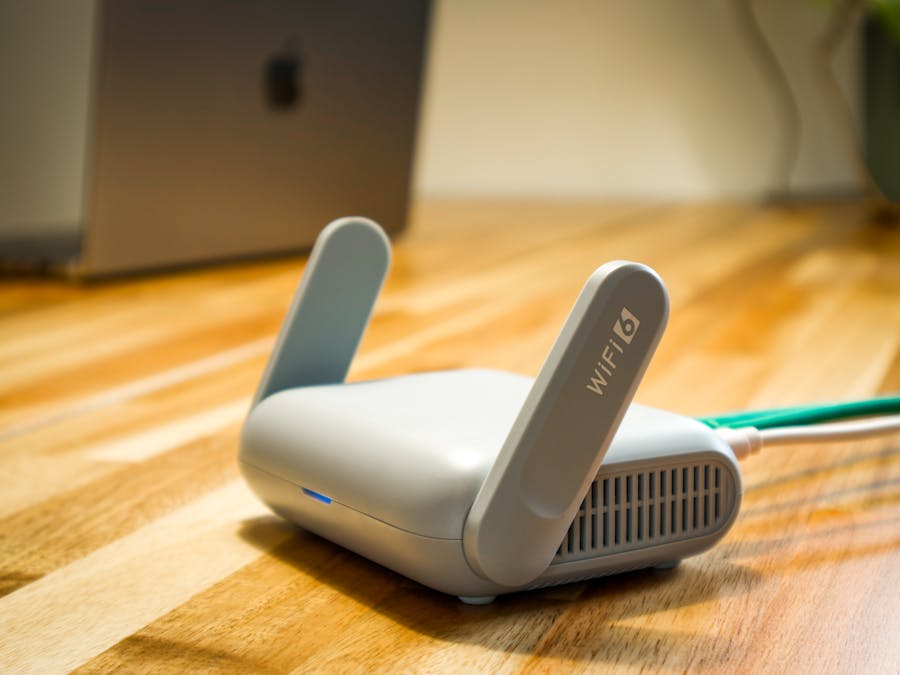
Since connectivity problems cause most refresh issues, testing your internet connection should be your first step. This quick check can save you time troubleshooting other things that aren’t actually the problem.
Start by opening a web browser on your phone and loading any website. If pages load slowly or not at all, your internet connection is likely the issue rather than Instagram itself. Try switching between WiFi and mobile data to see if one works better than the other. Sometimes your WiFi network has problems while cellular data works fine, or vice versa.
If you’re on WiFi, move closer to your router and try refreshing again. Walls, distance, and interference from other devices can weaken your signal significantly. You might also try restarting your router by unplugging it for about thirty seconds and plugging it back in. This simple reset often resolves connectivity hiccups.
For mobile data issues, check that you haven’t exceeded your data limit for the month. Some carriers throttle speeds dramatically once you hit your cap, making apps like Instagram struggle to load content. Also verify that mobile data is actually enabled for Instagram in your phone’s settings.
Network configurations can sometimes interfere with app connectivity. Some users explore proxy services for Instagram security, but improperly configured network settings can actually cause refresh problems. If you’ve recently changed any network or VPN settings, try reverting them to see if that helps.
Clear the Instagram App Cache
When your internet connection is working fine but Instagram still won’t refresh, clearing the app’s cache often solves the problem. The cache stores temporary data to help the app load faster, but sometimes this data becomes corrupted and causes issues instead.
Think of the cache like a notebook where Instagram jots down quick reminders. Over time, these notes can get messy, outdated, or contradictory. Clearing the cache is like giving Instagram a fresh notebook to work with. The app will rebuild its cache with clean data as you use it.
Clearing cache won’t delete your account, photos, or any important data. You’ll stay logged in, and all your posts and followers remain exactly as they were. The only thing you might notice is that the app takes slightly longer to load images the first time after clearing cache, since it needs to download them fresh.
How to Clear Cache on Android
Android makes clearing app cache straightforward through the system settings. Here’s how to do it:
- Open your phone’s Settings app
- Tap on Apps or Application Manager (the exact name varies by phone)
- Scroll through the list and tap on Instagram
- Tap on Storage or Storage & cache
- Tap the Clear Cache button
After clearing the cache, open Instagram and try refreshing your feed. The app should now pull fresh data from Instagram’s servers without any corrupted cache files getting in the way. If you still have problems, you can also try tapping Clear Data, but be aware this will log you out and reset the app to its default settings.
How to Clear Cache on iPhone
iOS doesn’t offer a direct way to clear an app’s cache like Android does. Instead, you have two options: offload the app or delete and reinstall it.
To offload Instagram, which removes the app but keeps your data:
- Go to Settings on your iPhone
- Tap General, then iPhone Storage
- Find and tap Instagram in the list
- Tap Offload App and confirm
- Once offloaded, tap Reinstall App
Alternatively, you can simply delete Instagram from your home screen and download it again from the App Store. This achieves the same result of clearing all cached data. You’ll need to log back in after reinstalling, so make sure you know your password before proceeding.
Update the Instagram App
Running an outdated version of Instagram can cause all sorts of problems, including refresh failures. Instagram regularly releases updates that fix bugs, improve performance, and add new features. When you skip updates, you might miss important fixes for known issues.
Outdated apps can also have compatibility problems with newer versions of your phone’s operating system. If you recently updated your iPhone or Android device but haven’t updated Instagram, the two might not work together as smoothly as they should.
To update Instagram on iPhone, open the App Store, tap your profile icon at the top, and scroll down to see pending updates. If Instagram appears in the list, tap Update next to it. On Android, open the Google Play Store, search for Instagram, and tap Update if available.
Consider enabling automatic updates so you always have the latest version. This ensures you get bug fixes as soon as they’re released. With the app updated, you can build a scrollable Instagram feed that loads and displays content properly without refresh issues getting in the way.
Restart Your Device
Sometimes the simplest solutions work best. Restarting your phone clears temporary memory, closes background processes that might be interfering with Instagram, and gives your device a fresh start. It’s the tech equivalent of taking a short nap when you’re feeling foggy.
When you restart your phone, it closes all running apps and clears the RAM (temporary memory). Any glitches or conflicts that built up during normal use get wiped away. This is why tech support often asks “have you tried turning it off and on again?” as a first step—it genuinely works more often than you’d expect.
To restart most phones, hold down the power button until you see the option to power off or restart. Choose restart if available, or power off and then turn the phone back on after a few seconds. On newer iPhones, you might need to hold the power button and volume button together.
After your phone restarts, open Instagram and try refreshing your feed. Many users find that this simple step resolves their Instagram not refreshing problem completely. If the issue returns after a while, there might be a deeper problem that needs a different solution.
Check If Instagram Servers Are Down
Sometimes the problem isn’t on your end at all. Instagram’s servers occasionally experience outages that affect users worldwide. During these times, no amount of troubleshooting on your phone will help—you simply need to wait for Instagram to fix things.
Several websites track the status of popular services like Instagram. A quick internet search for “Instagram down” will show you recent reports from other users experiencing problems. If thousands of people are reporting issues at the same time, you can be fairly confident that Instagram is having server problems.
You can also check Instagram’s official social media accounts on other platforms for announcements about outages. They sometimes post updates about known issues and estimated fix times. Twitter (now X) is often where these announcements appear first.
Server issues can also affect login and authentication, which is why maintaining a secure Instagram login experience matters. If you’re having trouble logging in during an outage, don’t panic or repeatedly try different passwords. Just wait for the servers to stabilize and try again later.
Log Out and Log Back In
Logging out of your Instagram account and logging back in can refresh your session and resolve various glitches. This process forces Instagram to re-establish your connection with its servers and can clear up authentication issues that might be preventing refresh.
To log out of Instagram:
- Tap your profile icon in the bottom right corner
- Tap the three horizontal lines (menu) in the top right
- Scroll down and tap Settings and privacy
- Scroll to the bottom and tap Log out
- Confirm that you want to log out
Before logging back in, wait about thirty seconds. This gives Instagram’s servers time to fully close your previous session. Then open the app and log in with your username and password. Instagram handles user data according to data privacy laws during login processes, so your information remains protected.
When logging back in, be cautious about any unexpected requests for information. Scammers sometimes create fake login pages to steal credentials. Make sure you’re entering your password in the official Instagram app, and learn how to avoid Instagram phone scams that might target users experiencing app problems.
Reinstall the Instagram App
If clearing cache and logging out didn’t work, completely removing and reinstalling Instagram provides a deeper reset. This process removes all app data from your phone and downloads a fresh copy from the app store, eliminating any corrupted files that might be causing problems.
Reinstalling is more thorough than clearing cache because it removes the entire app, including all settings and stored data. When you download Instagram again, you’re getting a clean installation without any baggage from your previous version.
To reinstall on iPhone, press and hold the Instagram icon until a menu appears, then tap Remove App and confirm. On Android, go to Settings, then Apps, find Instagram, and tap Uninstall. After the app is removed, visit the App Store or Google Play Store and download Instagram again.
Keep in mind that reinstalling the app is different from choosing to delete your Instagram account entirely. Reinstalling only removes the app from your phone—your account, posts, followers, and all your content remain safely stored on Instagram’s servers. You’ll just need to log back in after reinstalling.
After reinstalling, take a moment to check your app permissions. Make sure Instagram has access to your camera, microphone, and photos if you want to use those features. Also verify that notifications are enabled if you want to receive alerts about new activity.
Adjust Your Account Settings
Certain settings on your phone or within Instagram can affect how well the app refreshes content. Checking and adjusting these settings might resolve persistent refresh problems that other solutions haven’t fixed.
Data Saver mode is one common culprit. Instagram has a built-in data saver feature that reduces how much data the app uses. While this helps if you have a limited data plan, it can also slow down or prevent content from loading properly. To check this setting, go to your Instagram profile, tap the menu, then Settings and privacy, and look for Data usage and media quality. Make sure Data Saver is turned off if you’re having refresh issues.
Background App Refresh is another important setting. This feature allows apps to update content in the background so new posts are ready when you open the app. If it’s disabled for Instagram, the app can only refresh when you’re actively using it, which might make it seem slower. On iPhone, go to Settings, then General, then Background App Refresh, and make sure it’s enabled for Instagram. On Android, this setting is usually in the app’s battery optimization settings.
Businesses using Instagram for marketing need reliable app performance, similar to how financial management requires dependable tools. If you’re managing a business account, proper settings help different Instagram engagement formats load correctly, from regular posts to stories and reels.
Also check your phone’s battery saver or low power mode. These features often restrict background activity for apps to conserve battery, which can interfere with Instagram’s ability to refresh content. Try disabling battery saver temporarily to see if it helps.
When to Contact Instagram Support
If you’ve tried all the troubleshooting steps above and your Instagram is still not refreshing, it might be time to reach out to Instagram’s support team. Some issues require help from Instagram’s end, especially if they’re related to your specific account.
Before contacting support, gather some information that will help them assist you faster. Note down what device you’re using, your operating system version, the Instagram app version, and a description of exactly what happens when you try to refresh. Screenshots or screen recordings of the problem can also be helpful.
To contact Instagram support, go to your profile, tap the menu, then Settings and privacy, then Help, and finally Report a Problem. Describe your issue clearly and include all the relevant details. Be patient after submitting—Instagram receives many support requests and responses can take time.
Persistent issues can affect your ability to keep followers engaged on Instagram, which is especially frustrating for creators and businesses who depend on the platform. If you’re a content creator or influencer who relies on Instagram working properly, this creator guide covers marketing strategies that can help you maintain your presence even when dealing with technical difficulties.
While waiting for a response from support, you might try accessing Instagram through a web browser on your phone or computer. The web version has fewer features than the app, but it can let you check your feed and interact with content while you work on fixing the app issue.
Remember that most Instagram not refreshing problems have straightforward solutions. Work through the troubleshooting steps methodically, starting with the simplest fixes like checking your internet connection and clearing cache. More often than not, one of these approaches will get your feed loading smoothly again. And if all else fails, Instagram support is there to help with issues that require their intervention.